Work Text:
Learning how to HTML code for AO3
I'm still learning and a basic beginner!
I have all my notes both here and on Tumblr. The Tumblr one would include some pictures to help in some instances and it's more recommended cause there's no . to delete from those codes so it's easier to copy and paste.
HERE!: TUMBLR: With pictures and Easier Copy/Pasting!
Sources I used to help my idiot self:
So how it works is that you have: code START/TEXT/END code
It would look like this for nearly all of them
<.b>HELLO!<./b>
HELLO!
REMEMBER to delete the . 's from the start and end of the start and end Codes! (again here: to see the rules without them for easier copying!)
HTML TAGS:
Click Here! Coding Babble Below
Collapsing a block of text: details (useful for very large comments and replies!)
<.details><.summary>CLICK HERE EXAMPLE TEXT!<./summary>
TEXT AND BODY OF PARAGRAPHS HERE
<./details>
Simplifying a link: a
Looks Like this!: <.a href="LINK EXAMPLE">TEXT THAT IS SHOWN INSTEAD<./a>
Make a line break:<.hr />
Make text BOLD:b
Make text BIG:big
Make text BOLD AND BIG:strong
Make text SMALLER:small
Make text UNDERLINED:u
Make text STROKETHOUGH:s
Make text ITALIC:i
Make text as HEADINGS! 1-6: <.h1>TEXT HERE!<./h1>
Make text as DOT-POINTS: ul
Make text as ORDERED-POINTS: ol
It would look like this!:
<.ol or ul>
<.li>TEXT HERE!<./li>
<.li>TEXT HERE!<./li>
<./ol or ul>
I spent way too long trying until eventually when I realised that ol: ordered list/ ul: un-ordered list/ and li: Listed Item.
Embed Images and gifs!: img (sizing is based on pixels)
It Looks like this!: <.img src="URL HERE" alt="IMAGE DESCRIPTION HERE!" width="PIXEL SIZE HERE/AUTO" height="PIXEL SIZE HERE/AUTO" ./>
And finally, we have the internet memes of those copy-and-paste things with: pre <.pre>TEXT AND STUFF WILLY NILLY HERE<./pre>
                  O
                 /|\
                  /\
Embedded Images (IMG)
More Info Here!
with embedding images, these formats are mostly used:
- APNG (animated)
- GIF (animated)
- AVIF (animated)
- JPEG
- PNG
- SVG
- WebP
Supposedly best quality are WebP and AVIF! However, it's not guaranteed these formats would work universally with all HTML-based websites (Ao3 in this case)
So experiment! it might be the website that is making the image be acting goofy to not copy the src (URL)
---------------------------------------------------------------------------
It's most important to copy the URL (src) from the image address and not just the current page the image is on.
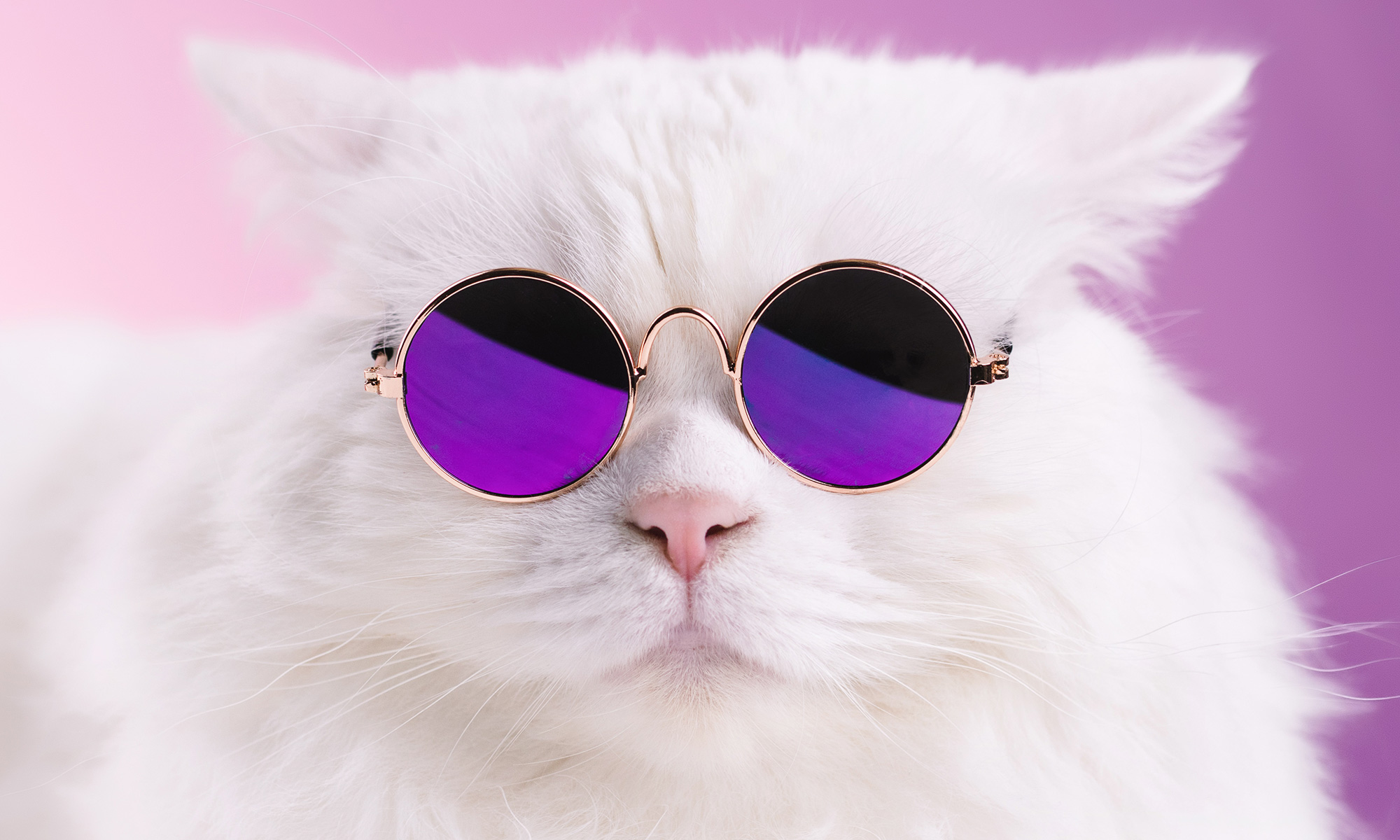
For instance, I'm gonna take this image from this website! (a weird website to pick from, but irrelevant, I dig the cat)
I'm gonna right click on the image and 'Copy Image Address'
Some others would appear as 'Copy Image URL'
OR
You can 'Open Image in New Tab' and copy the URL in the link bar from there
----------------------------------------------------------------------------
Resizing an Embedded Image
<.img src="LINK" alt="DESCRIPTION" width="PIXEL SIZE HERE/AUTO" height="PIXEL SIZE HERE/AUTO" ./>
I would specify the pixel size on the more important edge (width in this case) and have the other edge be "auto"(height in this case) to keep the original ratio to not warp the OG image.
It would look like this!
<.img src="https://skooncatlitter.com/blog/wp-content/uploads/2021/08/blog-COVER-2000x1200px-1-1.jpg" alt="A white cat looking towards the camera while wearing a purple round sunglasses" width="500" height="auto"/>
Site Skins and Work Skins!
CLICK HERE! For Ao3 Customization!
Ao3 Skins? They are customizable stylesheets that change the appearance of the AO3 site.
Site Skins! are for your eyes only! This is for navigating around the site and you can have it personalized to you.
HOWEVER: it is for logged-in accounts only! tho it works for all devices you log into your account from!
There are also a few skins to choose from however they aren't very modern looking and there's only one choice: reversi for dark mode.
Work Skins! are for your readers! This is for customizing the way your work looks for your work's readers.
HOWEVER: it is a limited choice of customization as not many existing skins are available without editing the CSS code yourself! it can also be ignored if people have the 'hide work skins' enabled in their preferences
To see the Skins
log in> select 'hi, Name'>'my Dashboard'> 'skins'
You would see in Order:
'my site skins'
'my work skin'
'public site skins'
'public work skins'
above that would be: 'revert to default skin' and 'create site skin'
CLICK HERE! TO SEE HOW I EDITED MINE
There are a few ways to make your own skin! I did this a few years ago so maybe some new outsourced skins are available? I'm not sure
- Make your own CSS code from scratch (highly unrecommended unless you have a lot of knowledge and time!)
- Make your own CSS code from AO3's Wizard ('skins'>'create new skin'>'use wizard'> and input all your desired options) HERE IS A GOOD GUIDE
- Try to outsource CSS code from another person who has kindly shared their skin online!
- Alter the Coding from an existing public site skin that is already available! (this is what I have done)
My Site Skin looks like this!
I had taken the CSS code from 'Reversi skin by AO3' in the 'public site skins' and changed the HEX colours of some locations to my desired colour HEX code instead. (mine was #00FFD9)

Here's how to edit a pre-existing public site skin!
To extract the CSS code from an already existing public skin:
- Click the title of the desired skin that you want to edit!
- copy all code from CSS and below
- go back to 'skins'> and select 'create site skin'
- Paste CSS code from public site skin
- Search (or if on pc: CTRL+F) for the desired sections of #HEX codes you want to change to your desired #HEX colour code!
Step 5 may be different for the other public skins! But I'll show which HEX I changed on my own edited Reversi Skin.
Make sure to EDIT THE HEX CODE to your desired HEX Code!
I had changed a total of 4 Codes
The reversi's original hex code was #5998D6
Change that code to your desired #HEX in your code!
Have fun testing!