
Work Text:
A collection of CSS add-ons and userscripts to customize your AO3 experience.
All CSS add-ons can work standalone, but for the full experience i recommend using Rosé Pine Site Skin by BlackBatCat, as most of them are based on and designed to be complementary with this gorgeous site skin
you're free to use anything here as you like! i just ask that you credit me and anyone else i've credited where relevant.
✨ My personal edits to the Rosé Pine skin ( Rosé Pine — Closer to Home ) lives in a separate fork, it restores some of the default AO3 interface aesthetics to the theme
Contents
Navigation
Add-ons
Installation instructions for each type of add-on (AO3 Skin, Stylus, Userscripts) are in the Installation section below.
Hide Inactive Navigation Buttons↑
AO3 Skin · hide-useless-nav-buttons.css
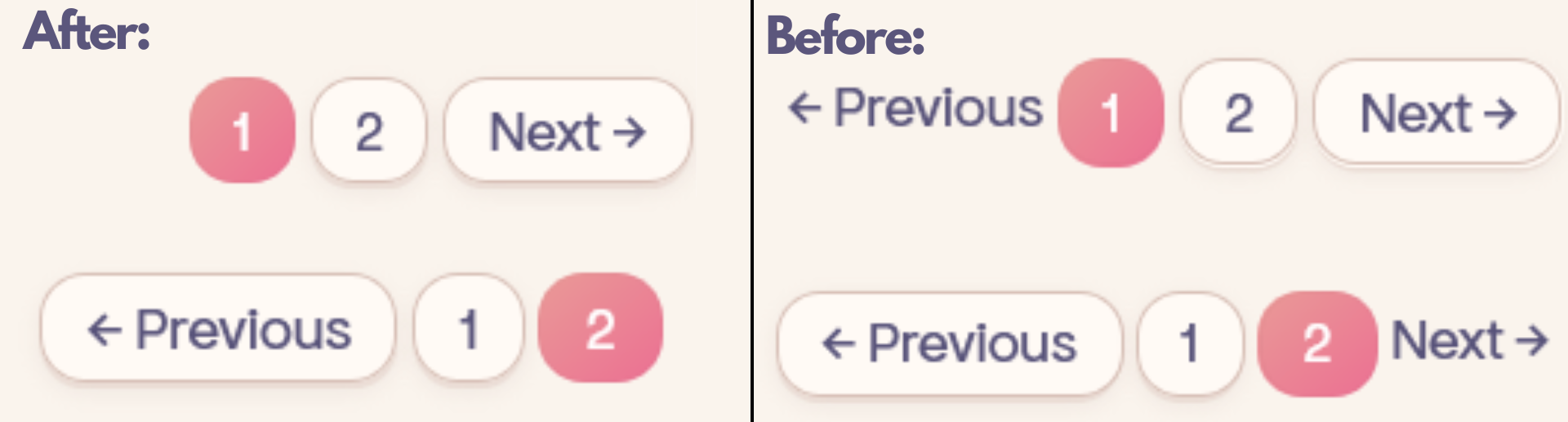
Hides the unclickable previous/next pagination buttons that appear when there's no page to navigate to.
A small quality-of-life tweak that keeps the interface looking clean.
LGBTQ+ Color-Coded Tags↑
AO3 Skin · lgbt-tags/
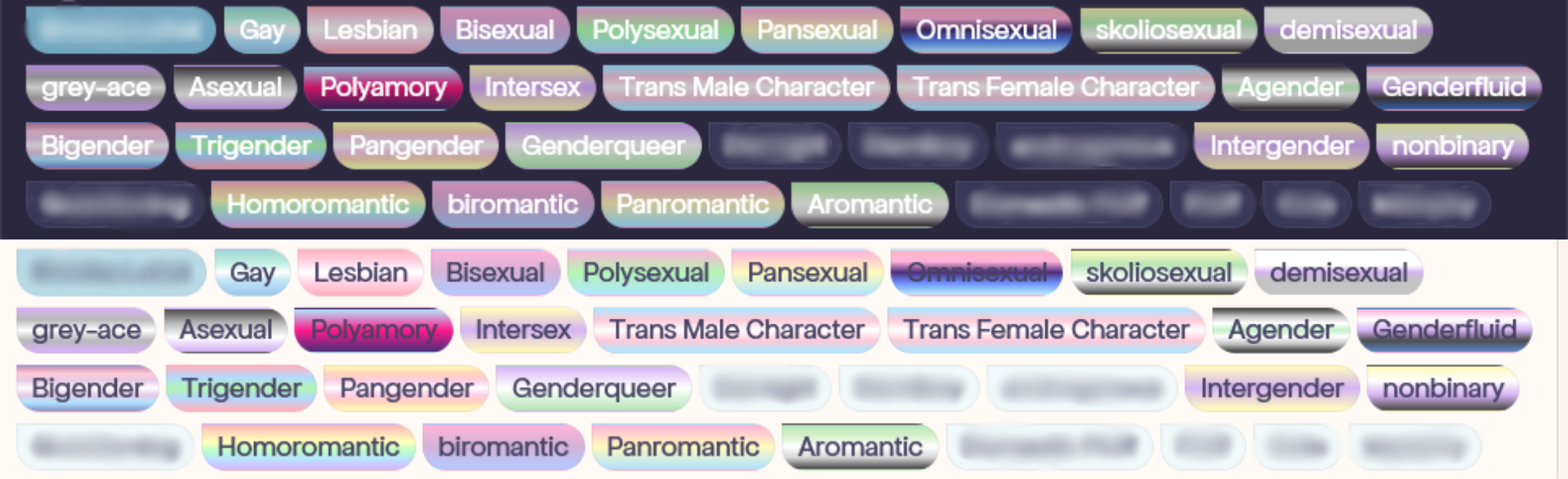
Assigns pride flags colors to their corresponding tags, making them visually distinct at a glance while browsing.
any related tag will be color coded with it's corresponding flag colors, the CSS is very detailed and hopefully covers any LGBTQ+ related tag as it includes up to 30 Orientations, the showcased example in the preview below doesn't cover all of them
Comes in two versions:
- lgbt-tags-light.css — for light themes
- lgbt-tags-dark.css — for dark themes
Credits:
- based on a CSS by BlackBatCat
- inspired by Highlight AO3 Tags's pride tags by mistbornhero on Tumblr
AO3 Logo in Header↑
AO3 Skin · only-logo-in-header-Colored.css
Removes the "Archive of Our Own" text and keeps the AO3 logo to the header and recolors it to match the Rosé Pine skin palette.
Works as a standalone snippet if you're using a different theme but still want the logo back.
Header Padding↑
Stylus only · header-padding(stylus).css
Complementary to AO3 Logo in Header
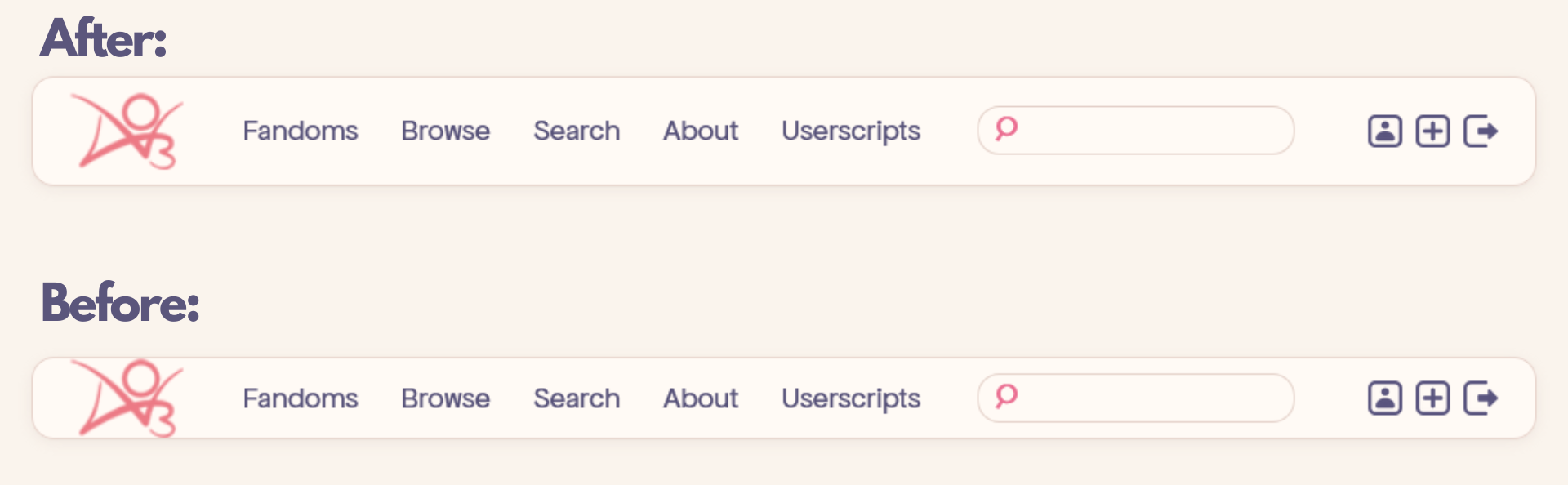
Adds a little breathing room to the header bar so it sits more comfortably on desktop and wider screens.
Applied via Stylus because it pairs with layout-level adjustments that work better outside AO3's skin system.
Custom Fonts for Mobile↑
Stylus only · custom-fonts(stylus).css
mobile devices are very limited regarding font options, that's why your custom font doesnt apply on your mobile, because AO3's skin editor doesn't support @font-face, which is needed to load custom fonts.
This snippet lets you load any font using its host URL (from Google Fonts, GitHub, etc.) through Stylus instead.
the CSS includes all Fonts recommended by BlackBatCat in the Rosé Pine Site Skin instructions.
— Works on desktop too if you don't have the font installed
also worth checking out: AO3: Rosé Pine Fonts userstyle by BlackBatCat — it has all the Rosé Pine skin fonts ready to go, and also includes customization options for font size, and separate font choices for the site, headings, code, and work pages. the customization instructions are in the userstyle notes.
— can also be used as a standalone with any AO3 skin — not just Rosé Pine.
how to get your font URL
the easiest method is through GitHub, simply search up the font name and see if the font designer is hosting it on github (which is most likely), otherwise you can host the font yourself if you want.
- navigate to the font file on the GitHub repo and copy its link ..
this should be the URL structure:https://github.com/[user]/[repo]/blob/[branch]/[path]
note: preferably choose the font file that ends with.woff2as this is the web font format and its most effecient for websites - next you must convert the URL into a JSDelivr CDN link for it to work
- you can simply paste the file URL you copied to this tool where it will convert it into a JSDelivr URL
Either way the output should look like this:or if you wanna do the hardwork yourself, you can manually do it as well.
only do these three changes to the URL:
1. Replacegithub.comwithcdn.jsdelivr.net/gh
2. Replace/blob/[branch]/with@[branch]/
3. Keep everything after that the same
FROM:https://github.com/[user]/[repo]/blob/[branch]/[path]
TO:https://cdn.jsdelivr.net/gh/[user]/[repo]@[branch]/[path]
Alternatively, Fontonic add-on can change fonts without Stylus, but its font selection is quite limited and it loads noticeably slower.
The Stylus method is recommended — all you need is the font's CSS URL from your font host, and trust me it's worth the effort.
Platonic Ship Tags — by BlackBatCat↑
AO3 Skin · Platonic-tags/
Included in the Rosé Pine Site Skin instructions,
defferentiates platonic relationship tags (X & Y) with their own custom color, and it's a must-have in my opinion, especially along with AO3: Reorder Ship Tags script
- Platonic-tags-light.css — for light themes
- Platonic-tags-dark.css — for dark themes
ALL CREDITS TO BlackBatCat
Custom Fonts — by BlackBatCat↑
AO3 Skin · custom-fonts.css
Extracted from the Rosé Pine Site Skin,
sets custom site, headings, code, and work fonts.
— useful if you want to keep your font choices separate so you don't have to re-enter them on every skin update.
⚠️ MAKE SURE YOUR CHOSEN FONTS ARE INSTALLED ON YOUR DEVICE
1. download the font
2. right-click the file (TTF or OTF)
3. select Install or Install for all users.
— On mobile, apply the Custom Fonts for Mobile CSS instead.
ALL CREDITS TO BlackBatCat
EPUB Download Button↑
Userscript · Greasyfork
Adds a convenient EPUB download button directly on blurbs so you don't have to go through the full work page then the download menu. it's simply there while you are browsing.
Two versions available:
- V2 - Next to Work Titles — recommended
Button appears next to work titles (after author names)- Works beautifully with AO3: Chapter Shortcuts
- Button positions itself after any existing buttons
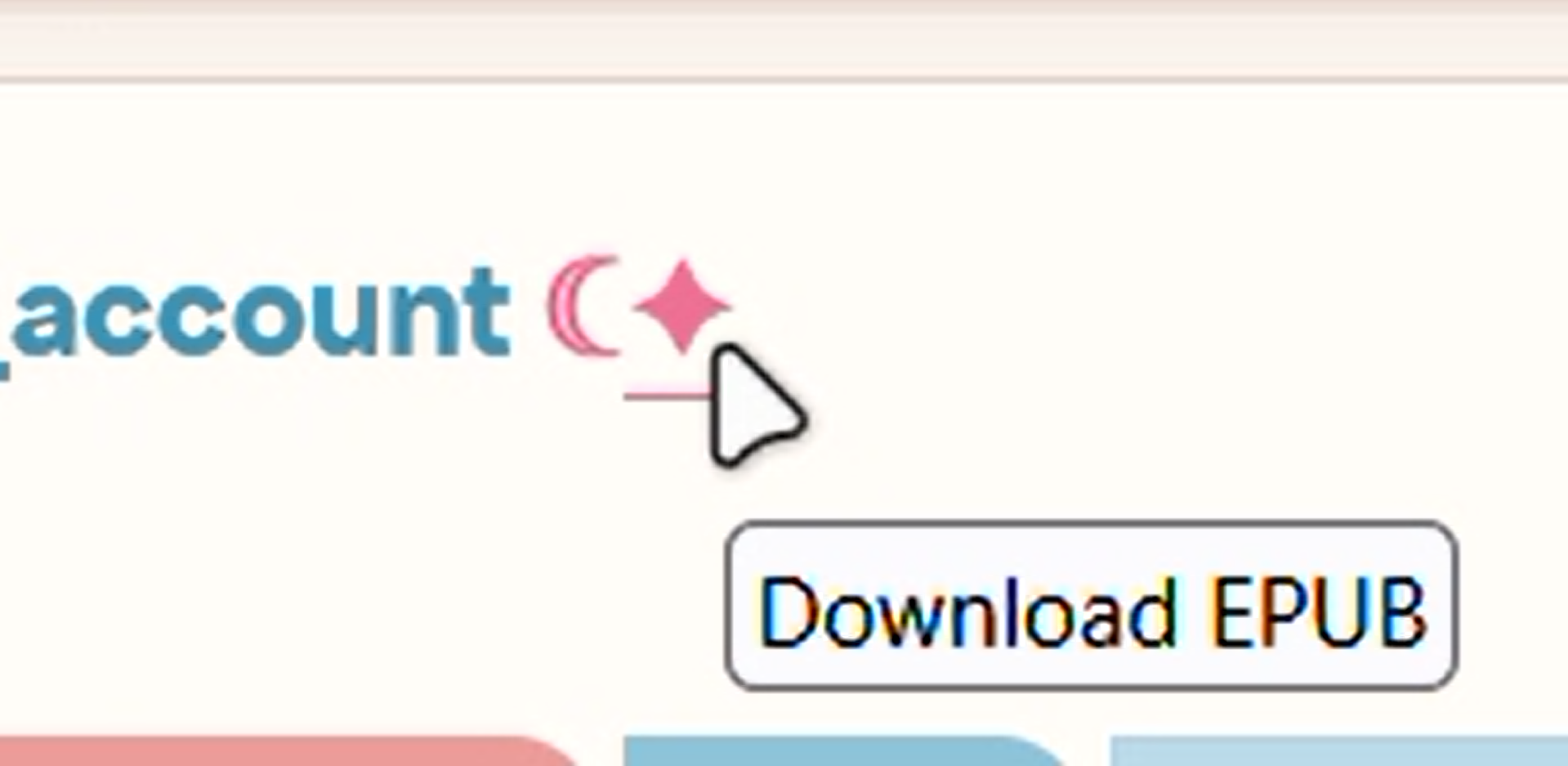
- V1 - Bottom-Left Corner — kept for anyone who prefers this style (looks better on desktop)
Button appears at bottom-left of work blurbs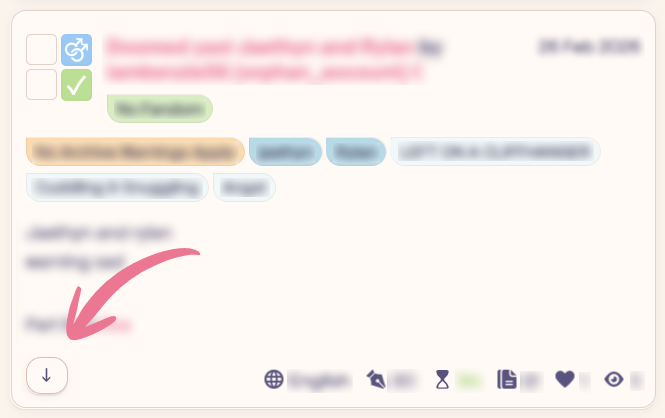
Unread Messages next to Favorites↑
Userscript · Greasyfork
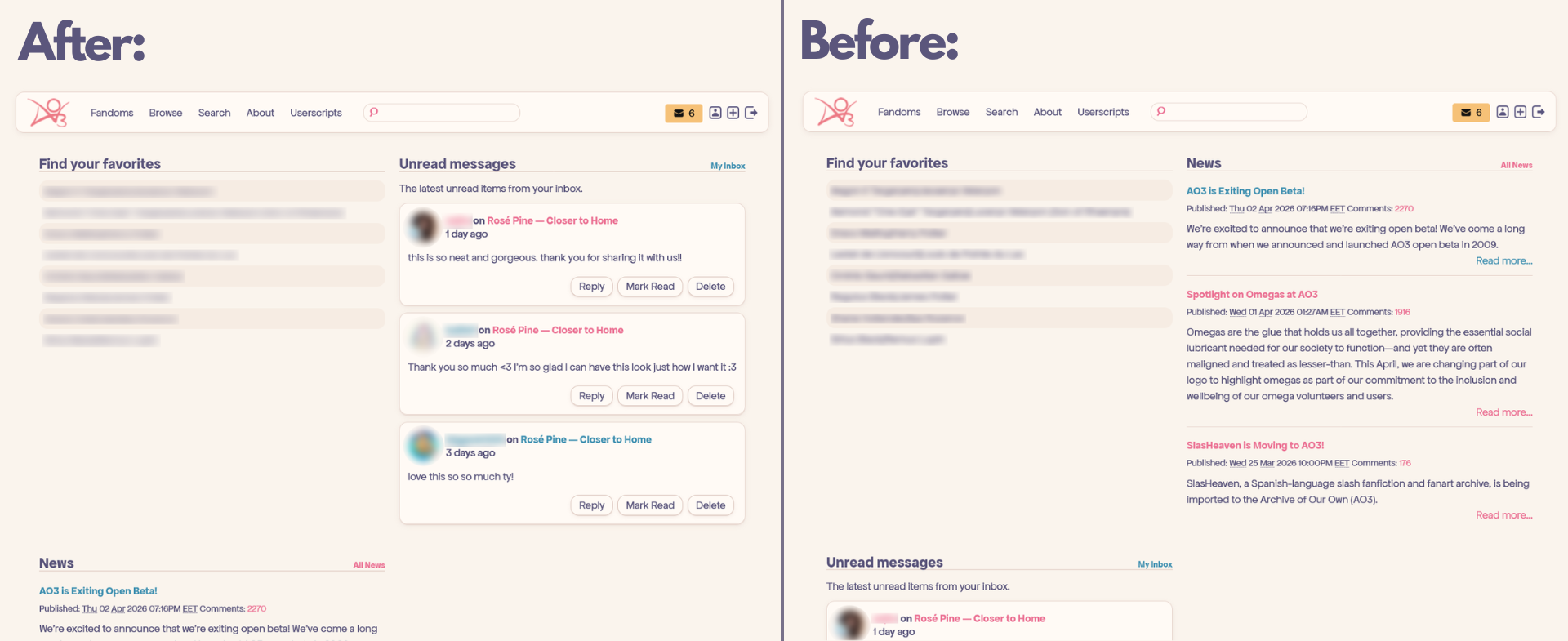
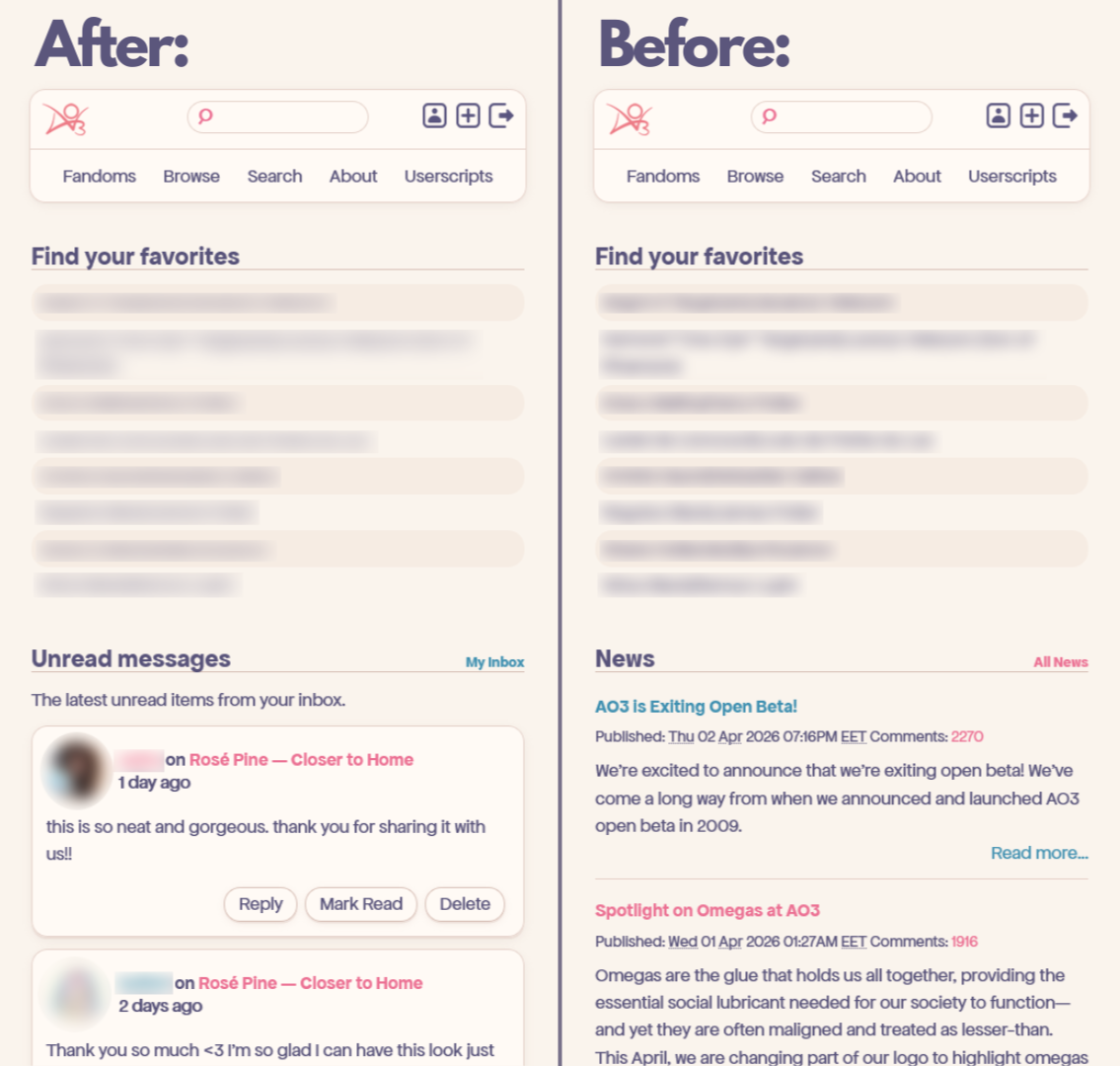
Moves the Unread Messages section next to the Favorites list on the AO3 home page.
By default, Unread Messages sits below the News section — this script swaps them so Unread Messages appears next to Favorites instead.
Credits:
Based on AO3: put new comments' notifications into home page's favorites div by Charles Rockafellor
Bonus: Light/Dark toolbar toggle button for Zen & Firefox users↑
A toolbar button i made for my Zen Browser that toggles website dark/light appearance with a single click using the built-in color-scheme preference in the browser settings.
If your skin has the prefers-color-scheme feature that auto switches the site appearance either light or dark mode according to your OS preference, this is for you!
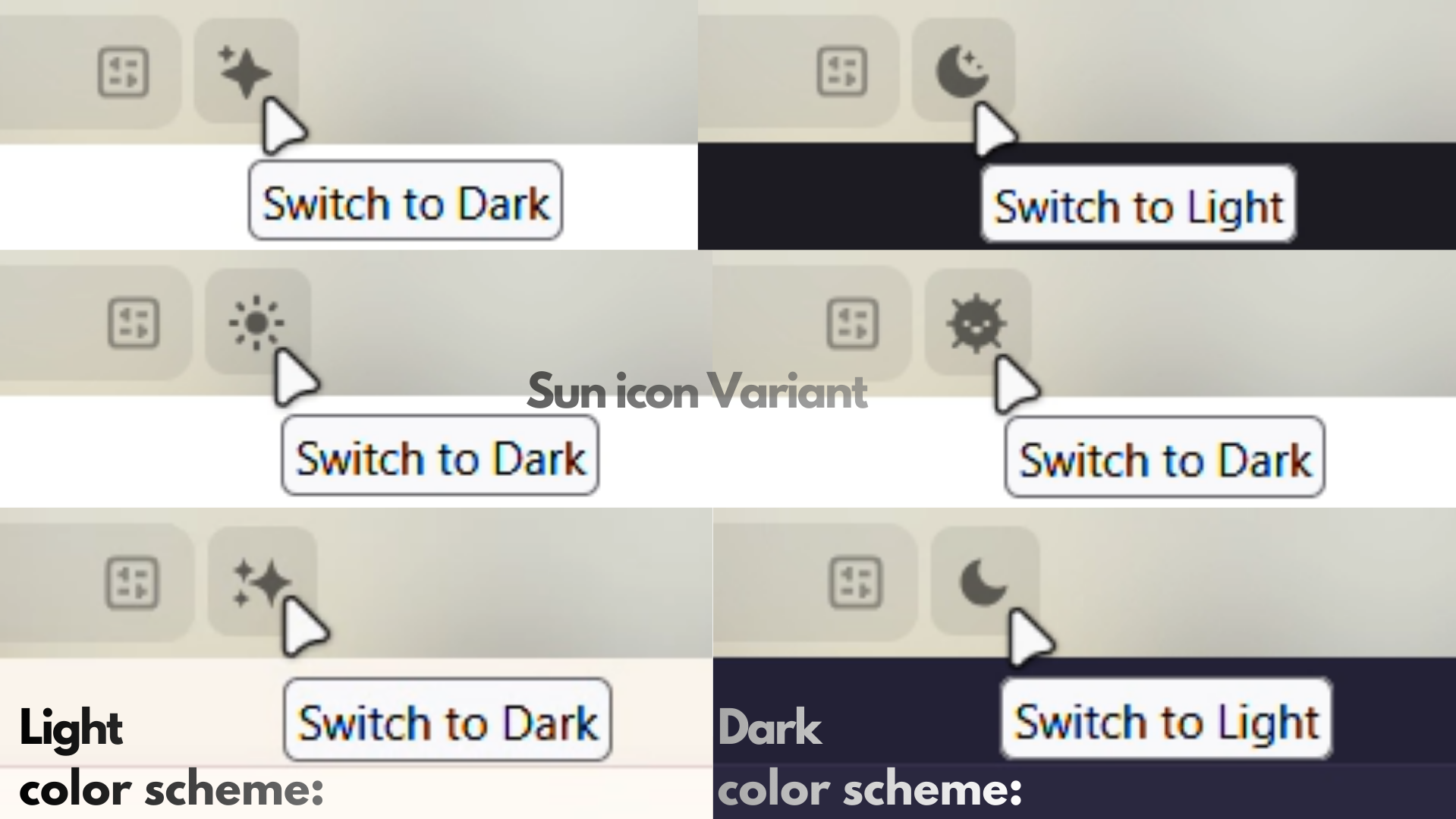
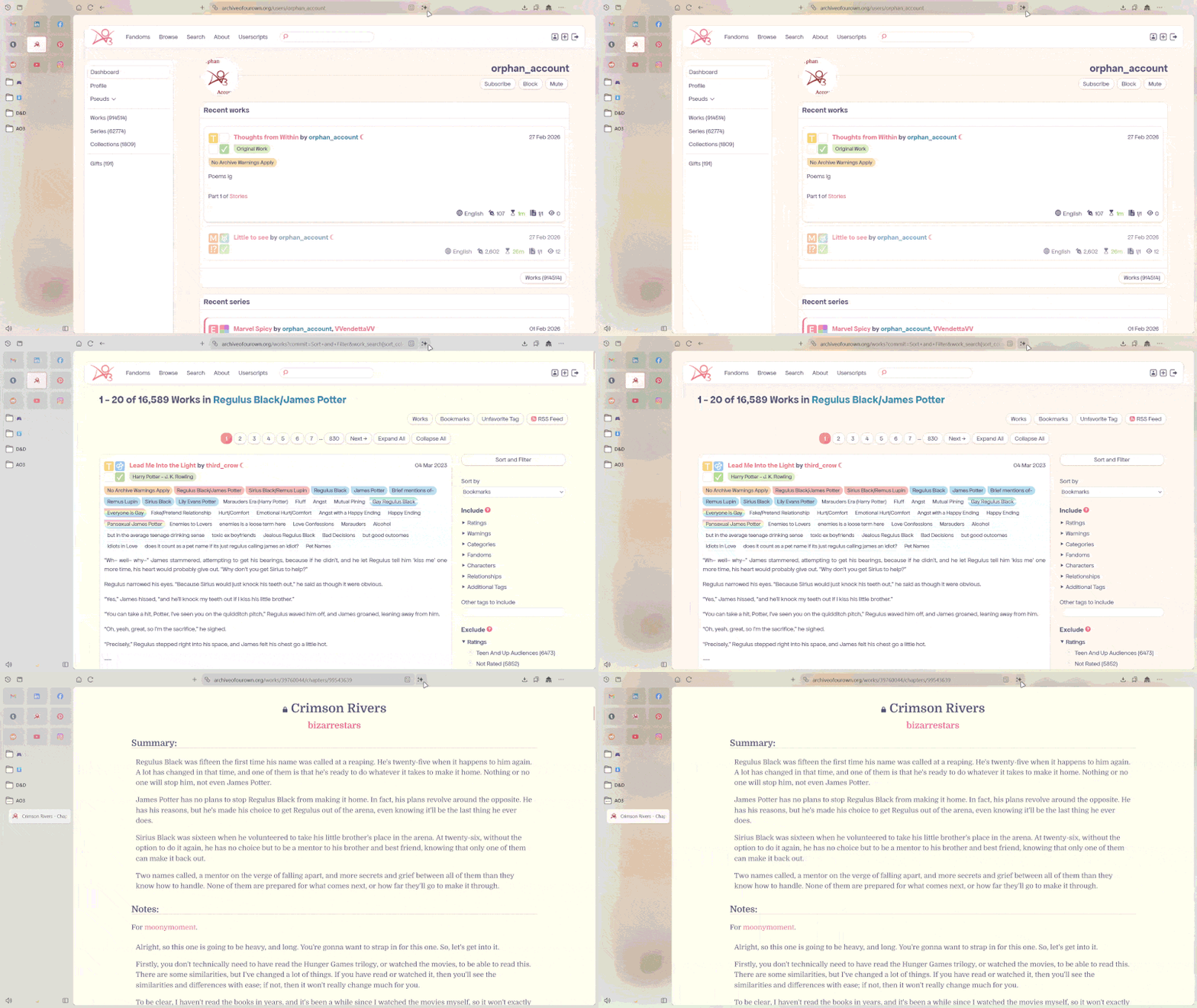
you can find all the instructions and everything about how to set it up, here
i made it mainly for AO3 but it works on any site that supports the feature.
i am a light-mode girl but i love the skin's dark mode alot too and i wanted to enjoy it as much, and was lowkey bugged by having to go through the settings and navigate to the option to toggle the site appearance everytime,
and i thought 'cant i just turn all that into a button that is one click away and easier to access?!' that is when i set my mind into it.
note: if THE GIF preview above makes it look slower or shows latency in loading the skin colors, i assure you it's not, this is just GIF being GIF, it's a very fast and light button, enjoy.
Add-ons I Also Recommend
Featured in the previews:
- Rosé Pine Site Skin by BlackBatCat — specifically my version: Rosé Pine — Closer to Home
- AO3: Chapter Shortcuts
- AO3: Reading Time & Quality Score
Other Scripts i'm also using (100% recommend):
- AO3: Advanced Blocker — VERY VERY customizable blocker for literally anything on the website, heals my OCD brain to the core, very beautiful and clean UI, basically a gem.
- AO3: Reorder Ship Tags — reorders ship tags so all platonic ships are placed at the end of the relationship tag order, for more organized and neat look.
- AO3: Comment Formatting and Preview — Adds buttons to insert text formatting to your comment, and shows a live preview box of what the comment will look like, very helpful especially for those who aren't familiar with HTML.
- AO3: Quick Hide — very convenient script that lets you hide-or more like collapse- works or comments, you can control the visibility of the collapsed item which is so satisfying for some reason, i use it to hide fics that i've already read or downloaded.
- AO3: Skin Switcher — tho i no longer switch my skins much anymore but its a very helpful shortcut that saves you the bother of navigating to your skins page, either to edit or set different skins.
- AO3: Site Wizard — so basically that is all in one skin editor at your hands, you can customize the site's fonts, colors, work formatting, very straightforward and easier UI for simple skin customizations.
- AO3: No Re-Kudos — automatically hides the kudos button on works where you've already left kudos.
- AO3: Auto Pseud — auto-selects your pseud for comments and bookmarks on AO3, based on fandom, all you need is to assign each pseud to your desired fandom.
- AO3 Tag Reorder — lets you rearrange tag order when editing a work, bookmark or collection very convenient and easy to use especially for authors and bookmarkers.
Installation
AO3 Site Skin (CSS)↑
You can paste them directly into an AO3 site skin:
- Log into AO3 and go to Dashboard → Skins → My Site Skins → Create Site Skin
- Give it a name, then paste the CSS into the CSS field
- Click Create and then Use to activate it
- To stack multiple snippets, either combine them into one skin or use AO3's parent skin feature to layer skins on top of each other
Some snippets on this list are marked (Stylus only) — AO3's skin editor restricts certain CSS features like
@font-face, so those need to be applied through Stylus instead.
Stylus (CSS)↑
Stylus is a browser extension that lets you inject CSS into any website, bypassing AO3's skin restrictions.
- Install Stylus for Firefox or Chrome
- Click the Stylus icon in your browser toolbar (or extensions menu)
- Navigate to the gear icon ⚙️ Options/Settings → Look for a plus icon ➕ Write new style
- Paste the CSS and click Save
On mobile, Stylus is available through Firefox for Android. Other mobile browsers may not support extensions.
Userscripts (JS via Greasyfork)↑
Userscripts require a script manager extension to run.
- Install Tampermonkey (or any script manager) for your browser
- Go to the script's Greasyfork page (linked in the relevant section above) and click Install
- Confirm the installation prompt
On mobile Firefox, Tampermonkey is available as an add-on and works the same way.
Credits
All snippets here are my own additions or modifications unless otherwise noted.
you're free to use, modify, or build on anything here — i just ask that you credit me and anyone else i've credited where relevant.